Updating the Vehicle Database for the DOT Inspection Form
Introduction:
This document outlines the step-by-step procedure for updating the vehicle database required for the DOT Inspection Form. This task should be completed bi-weekly or upon receiving requests from mechanics.
Procedure:
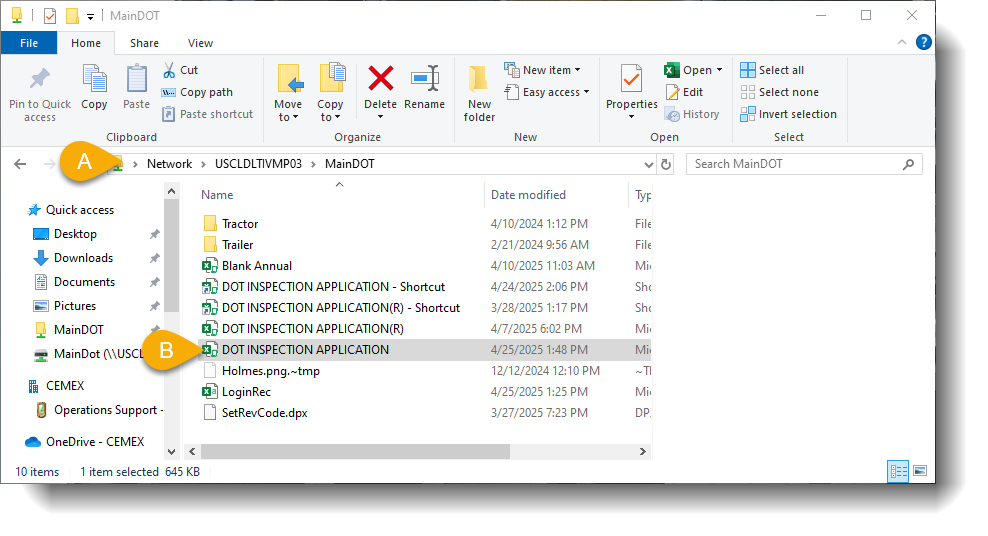
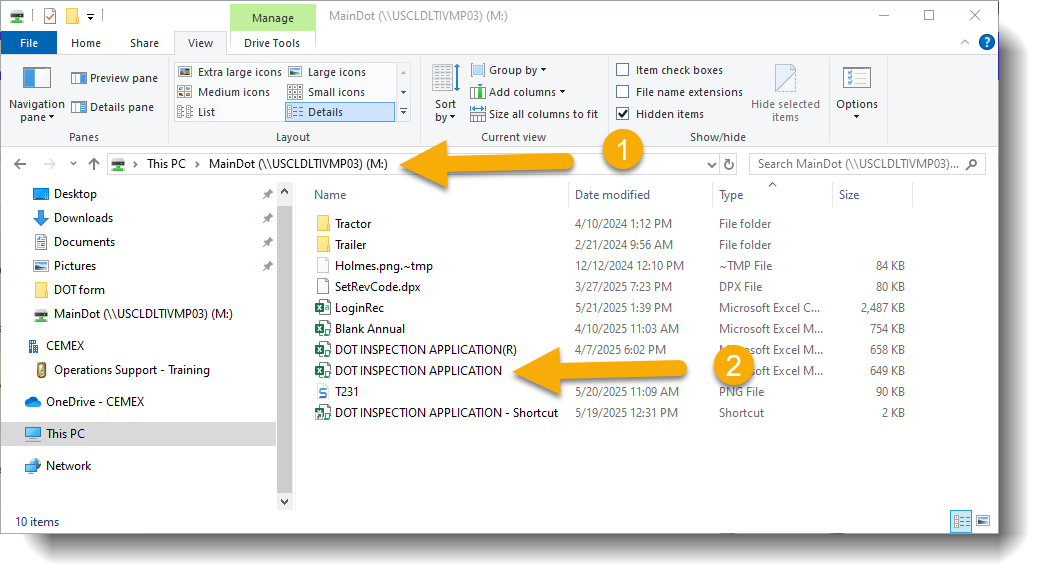
Navigate to the MainDOT shared folder.
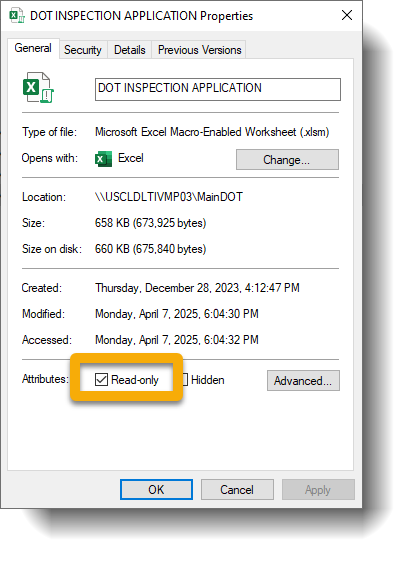
Right-click on the DOT INSPECTION APPLICATION icon and uncheck the Read-Only box.
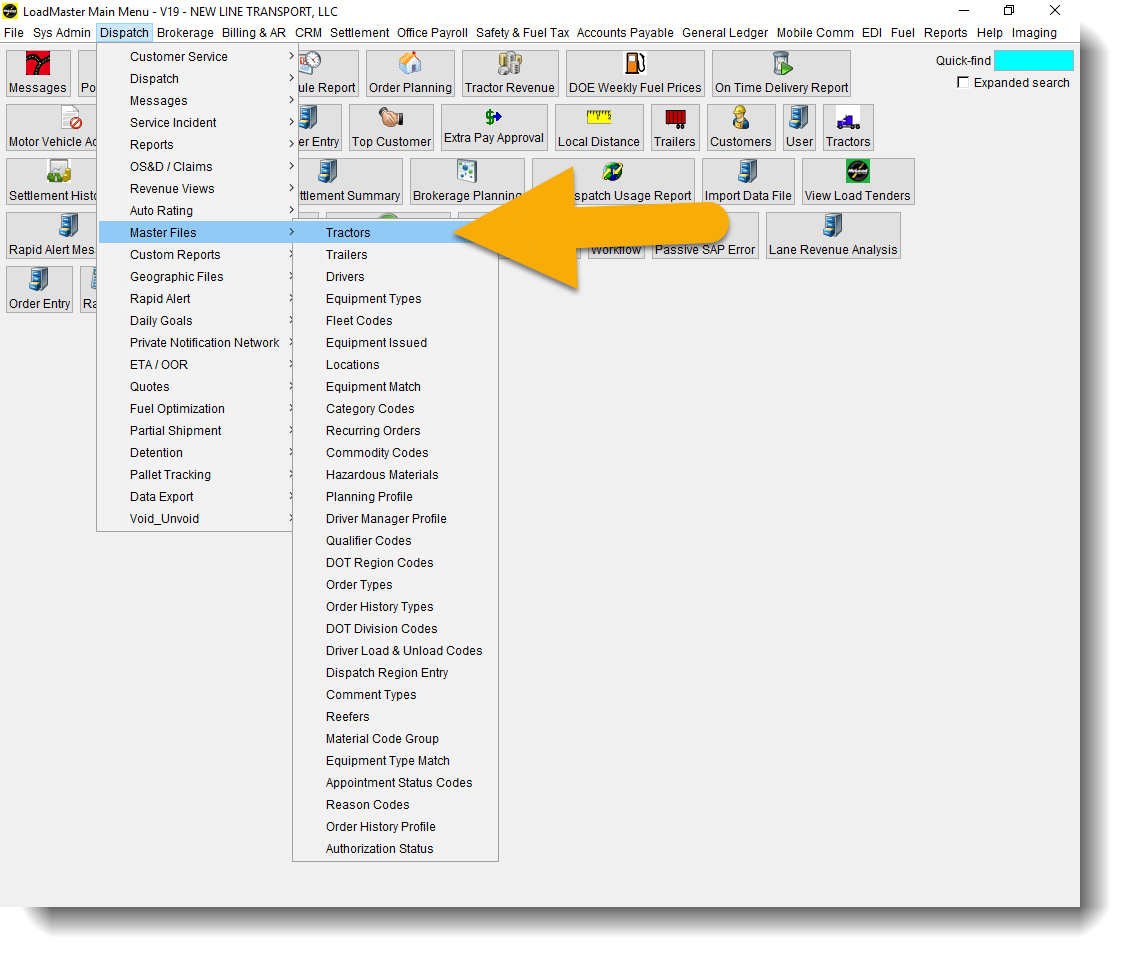
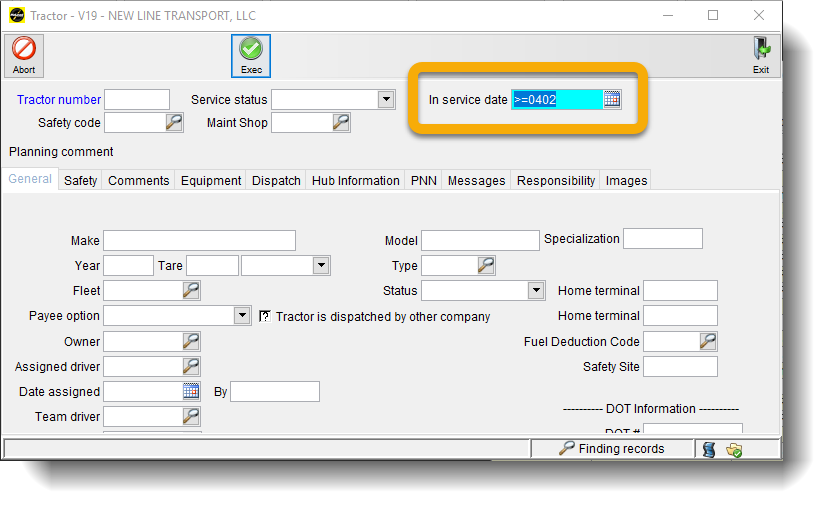
Open LoadMaster and go to the date filter window.
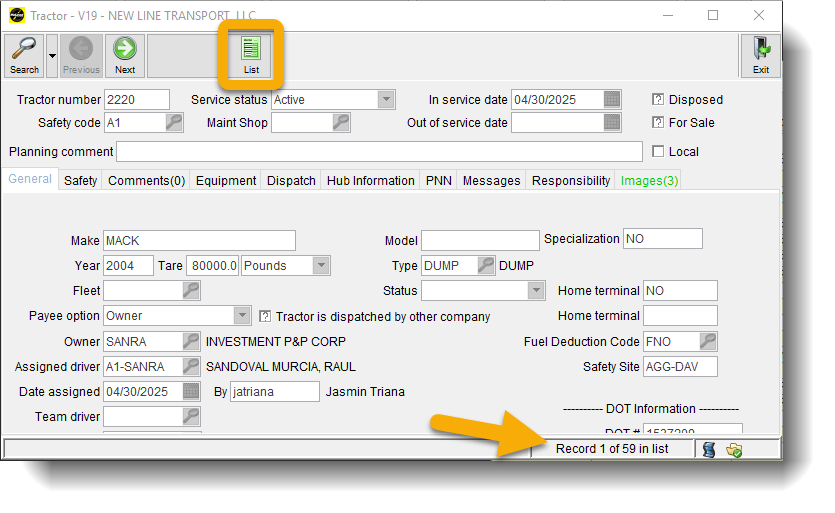
Select a date range for new records.
This narrows the list to show only new records.
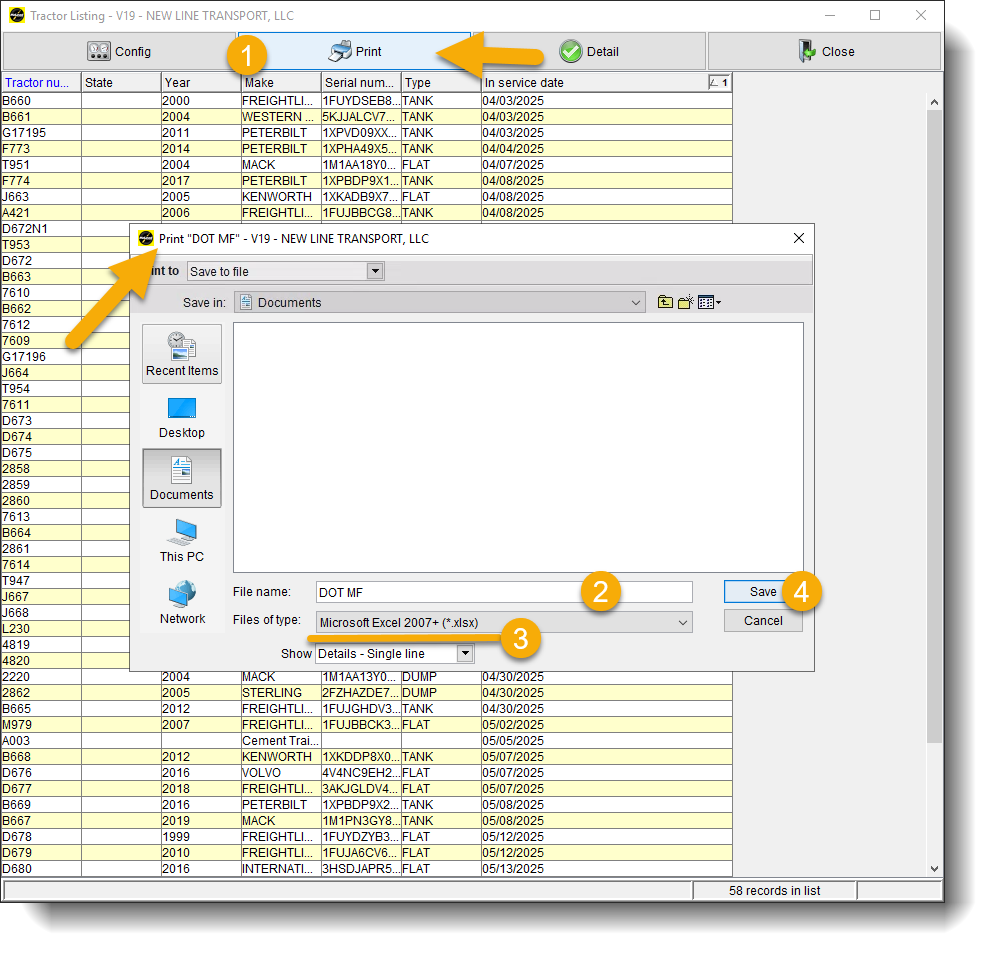
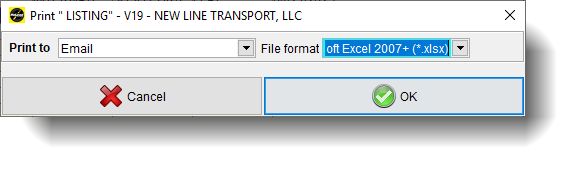
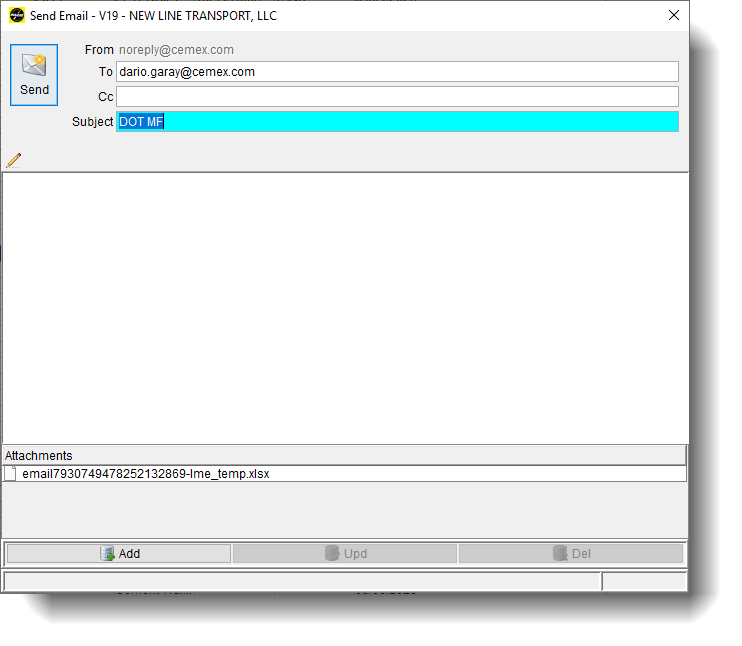
Right-click on any column in the list and select Print → Email → Excel 2007 format.
Access the server location:
Login using admin credentials:
Show Credentials
Username: mhaynes
Password: 15020056
Go to the Vehicles tab at the bottom of the spreadsheet.
Paste the new list at the end of the current list and save the file.
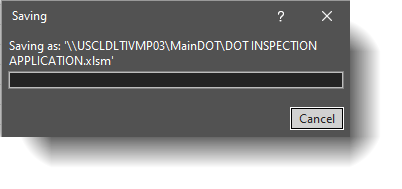
A confirmation popup will appear:
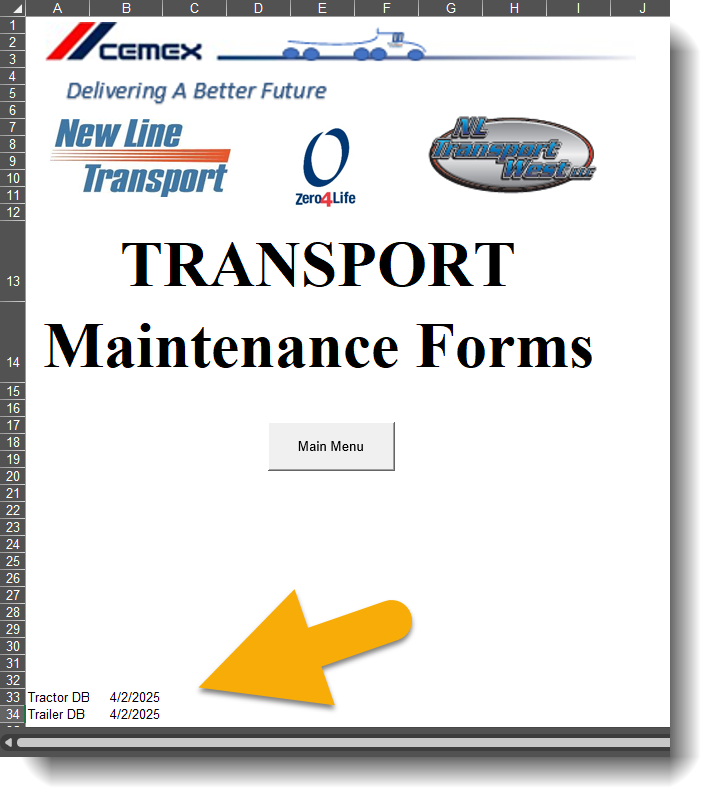
Update the date on the cover sheet:
Re-check the Read-Only box on the DOT INSPECTION APPLICATION file to prevent unwanted changes.
Note: If there are any issues producing the list or updating the sheet, contact Jose Candelario at josea.candelario@cemex.com.
Reminder: This process must be done every two weeks or as needed when a request is received from mechanics.